Install on macOS
The Mac desktop app installs LQ.AI as a one-app, Docker-based install you run from a control panel — download it, open it, set a password, and you’re working, with no terminal, no GitHub, and no config files to edit.
Everything LQ.AI does runs locally on your Mac. Your documents never leave your computer unless you add a cloud AI provider key and choose a cloud model.
What you need
Section titled “What you need”- A Mac with Apple Silicon (M1/M2/M3/M4).
- Docker Desktop installed and running — LQ.AI uses it to run its engine on your machine. Download Docker Desktop for Apple Silicon → (or browse docker.com/products/docker-desktop). If Docker isn’t installed or running, LQ.AI tells you and links you to it.
- About 12 GB of free disk for the engine images, and an internet connection for the first run. Leave room beyond that for the document-processing models and whatever documents you upload.
Download and check the release
Section titled “Download and check the release”Go to the latest desktop release on the
LQ.AI Releases page and download the
LQ.AI-<version>-arm64.dmg.
Before you drag the app to Applications, you can check that what you downloaded is the real,
signed release: the app is signed and notarized by Apple (Developer ID: Tucuxi, Inc.) — see
Install and set up, below — and that’s checkable rather than merely
asserted. This is the same check the maintainer runs by hand against the published artifact
(docs/BUILD-AND-RELEASE.md records it precisely because a green CI run
is not proof the shipped .dmg is signed and stapled). It uses the GitHub CLI (gh) and
Xcode’s command-line tools (xcrun):
gh release download desktop-vX.Y.Z -R LegalQuants/lq-ai -p '*.dmg' -D /tmp --clobberspctl -a -vvv -t open --context context:primary-signature /tmp/LQ.AI-*.dmg# want: accepted / source=Notarized Developer ID / origin=Developer ID Application: Tucuxi, Inc. (MC8BT9Z8GD)xcrun stapler validate /tmp/LQ.AI-*.dmg # "The validate action worked!"A Rejected verdict, or a stapler validate that doesn’t report success, tells you that the file
in front of you is not the signed and stapled artifact the maintainer verified — it doesn’t by
itself say why. The cause can sit on either side: an altered or incomplete download, or a release
that shipped without one of the two steps (docs/BUILD-AND-RELEASE.md
records that a .dmg needs both the signature and the staple). Don’t proceed past a failed check:
download the file again from the
Releases page, re-run both commands, and if it
still fails, treat it as a release problem to report rather than a warning to click through. Most
people can skip this and rely on macOS Gatekeeper’s own check in the next step; run it yourself if
you want the same proof the release maintainer checks.
Install and set up
Section titled “Install and set up”Double-click the downloaded .dmg. A window opens — drag the LQ.AI icon onto the Applications
folder, then eject the disk image.
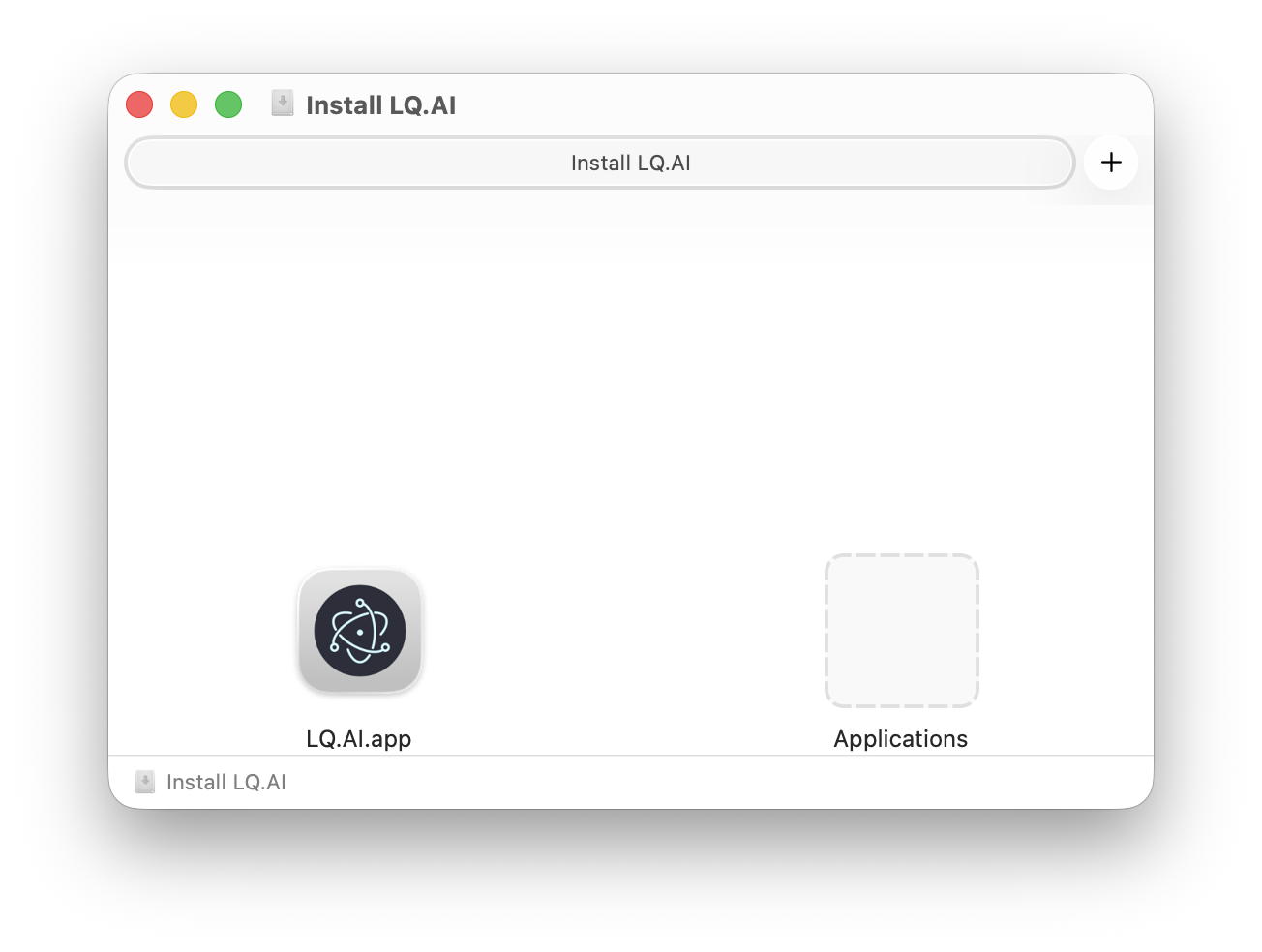
The opened .dmg — drag LQ.AI.app onto Applications, then eject the disk image.
Open LQ.AI from your Applications folder (or Launchpad). Because the app is signed and notarized by Apple (Developer ID: Tucuxi, Inc.), it opens normally — no “unidentified developer” warning.
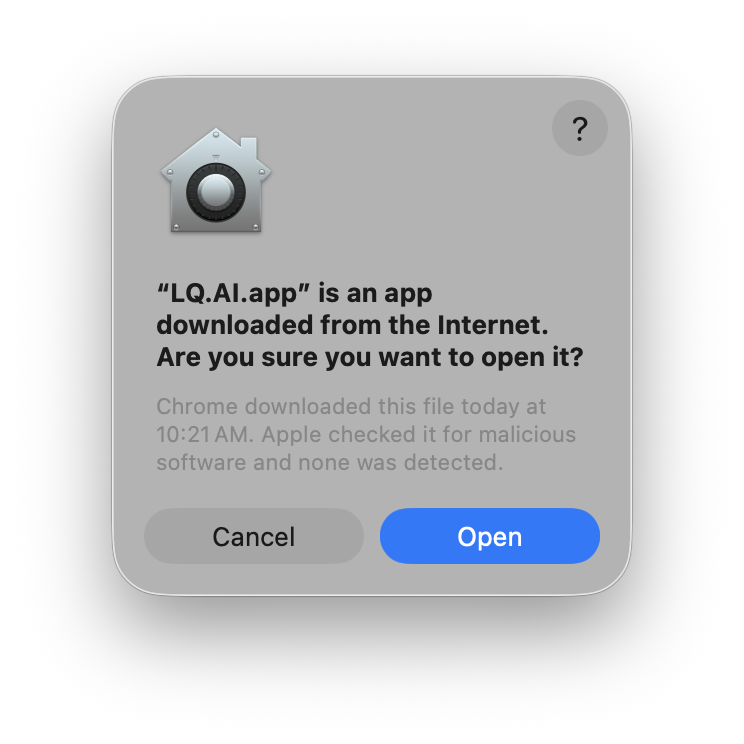
Because the app is signed + notarized (Apple Developer ID), macOS confirms it checked the app and found no malicious software — click Open.
The first time you open LQ.AI, a short Welcome wizard appears:
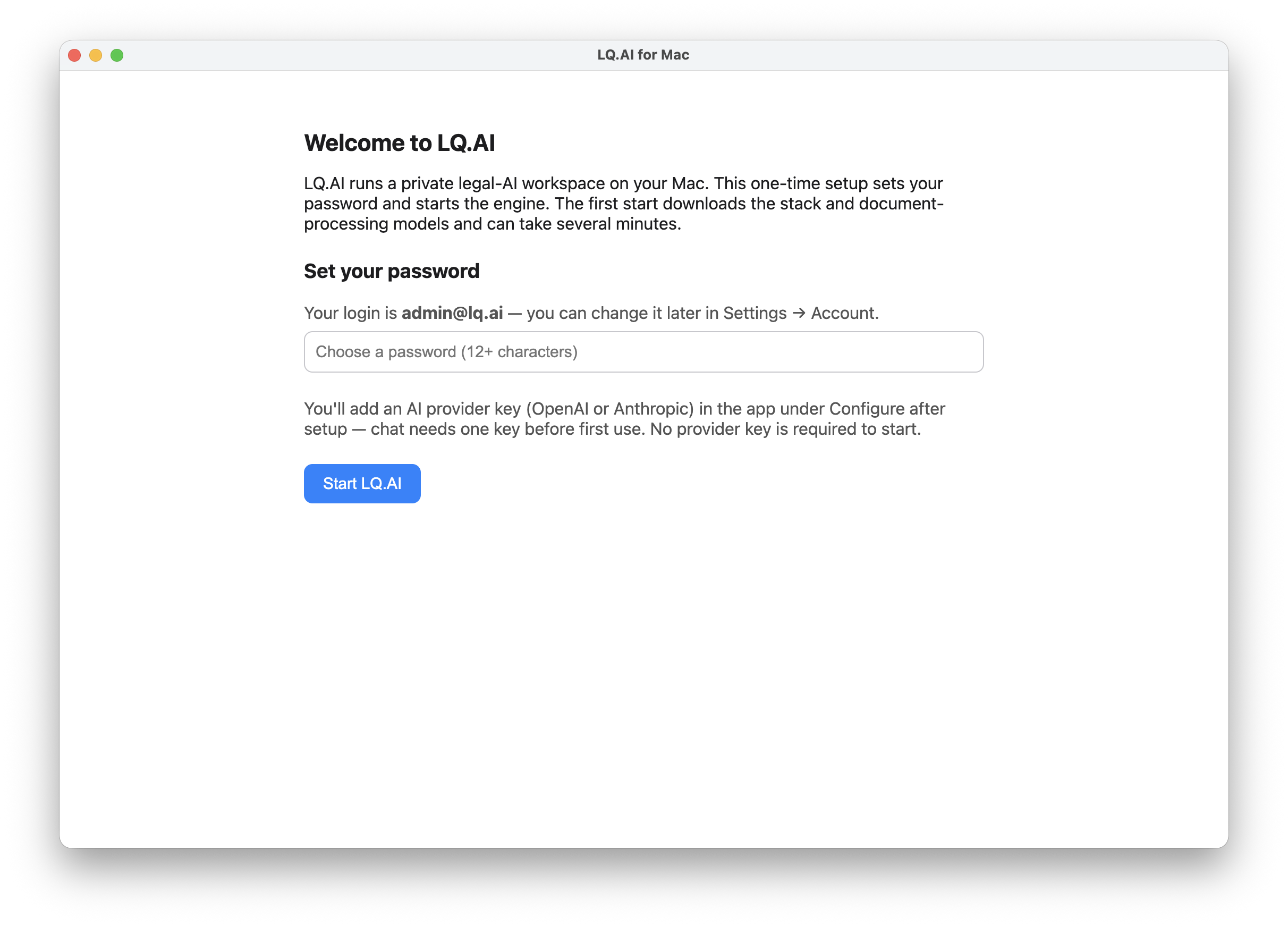
The one-time setup wizard — set a password for admin@lq.ai, optionally paste an AI provider key, and click Start LQ.AI.
- Set your password. Your login is
admin@lq.ai(shown on screen); choose a password of at least 12 characters. You can change the email and password later in Settings → Account. - AI provider key (optional). Paste an Anthropic (
sk-ant-…) or OpenAI key so chat works the moment you sign in. The provider is detected automatically from the key. You can leave this blank to start — the engine runs fine without it — and add a key later (see Provider keys (BYOK), below).
Use this wizard for the desktop install — the source-clone commands in the Compose Quick Start are a different route (see Prefer the command line? at the end of this page).
First start and sign-in
Section titled “First start and sign-in”Click Start LQ.AI. The first start downloads the engine and document-processing models — a few minutes the first time only — and shows live progress (e.g. “5/8 services ready”). When it reaches Running, you’re set.
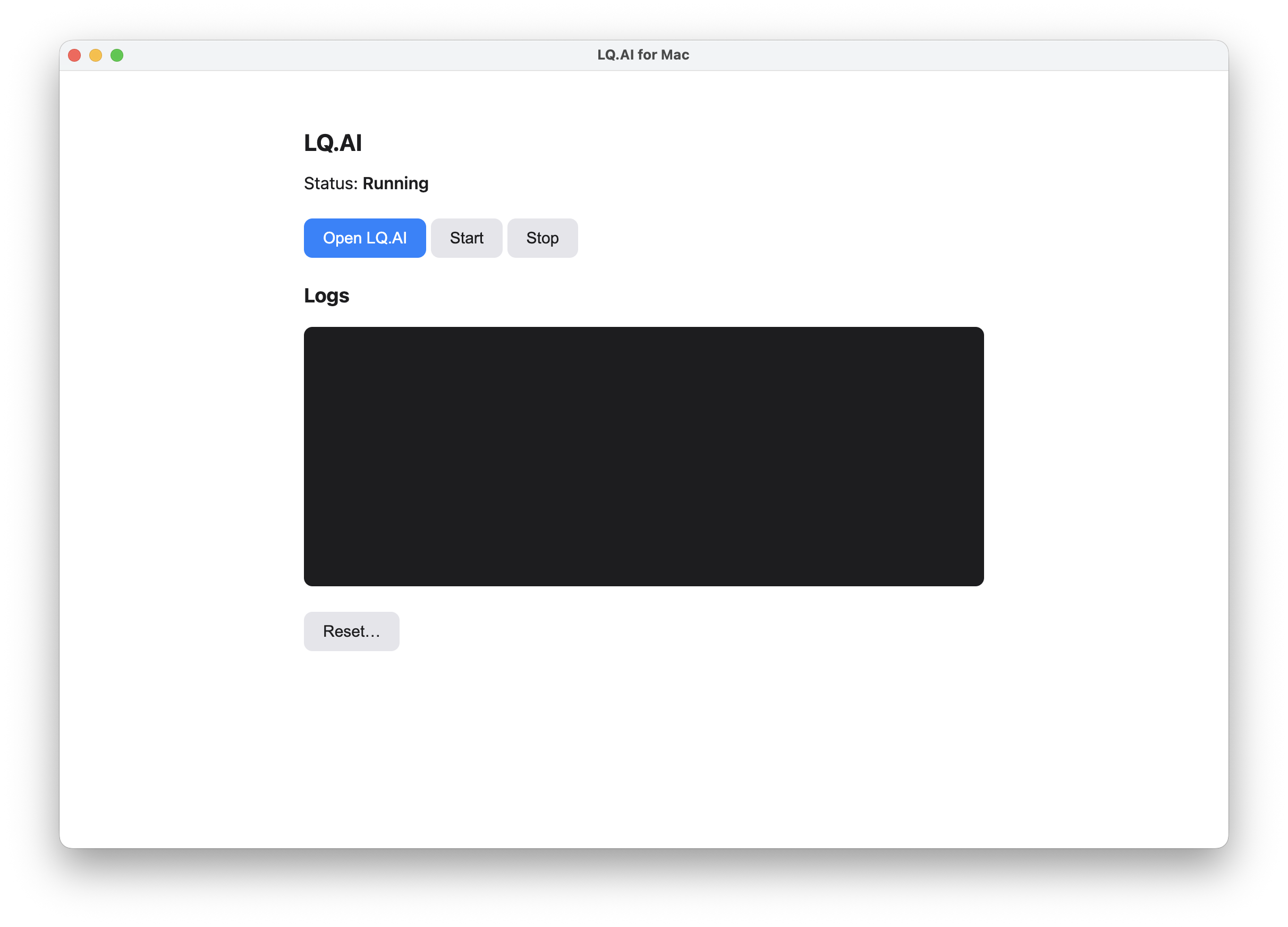
Once the stack is healthy the panel shows Running — click Open LQ.AI.
Click Open LQ.AI and sign in with admin@lq.ai and the password you set. You’ll land on the
home workspace. A working sign-in only means the app itself is running — chat additionally needs a
provider key before it can answer (first note above), and the document-processing models keep
loading passively in the background regardless (second note above).
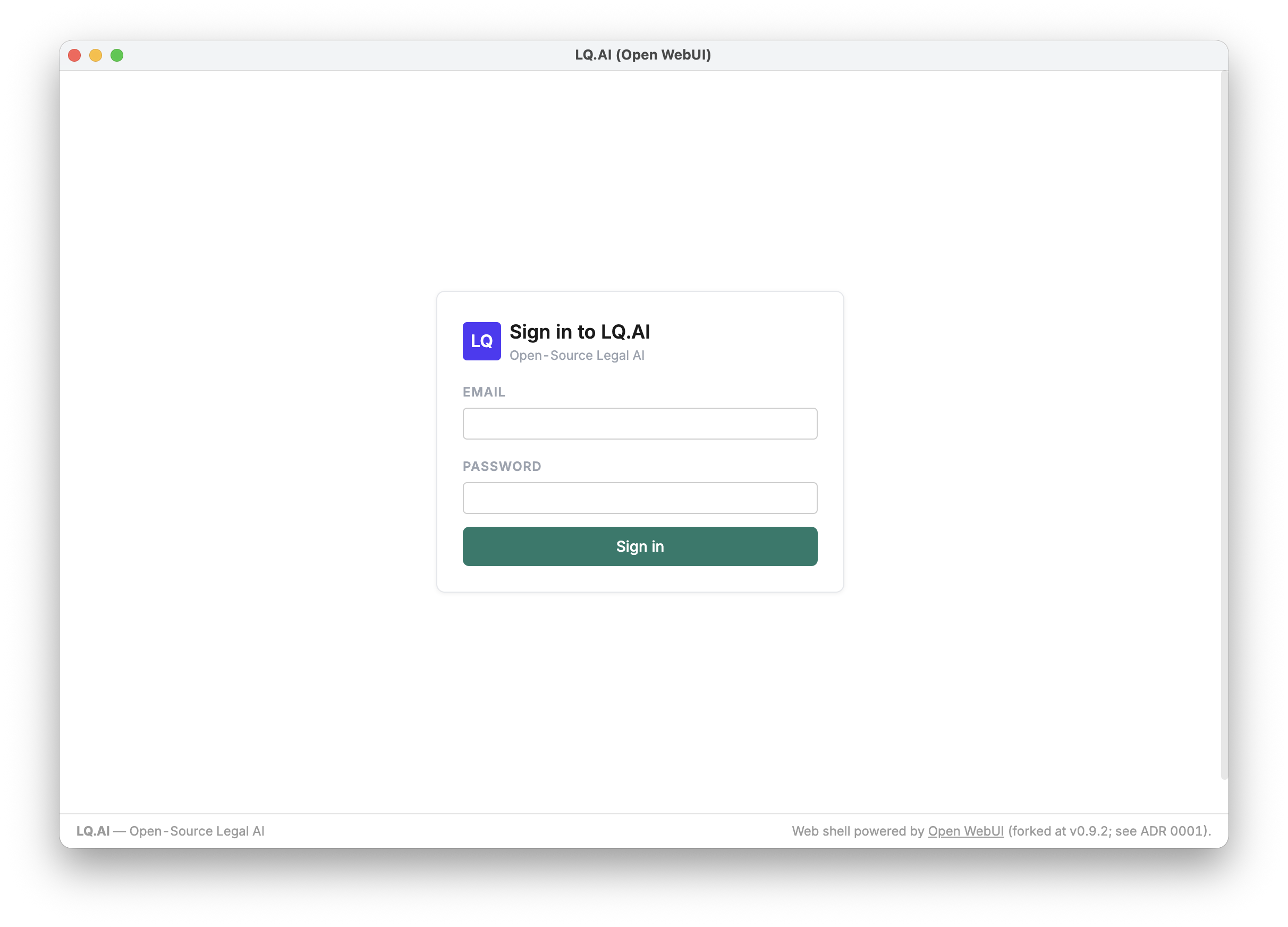
Sign in with admin@lq.ai and the password you set in setup.
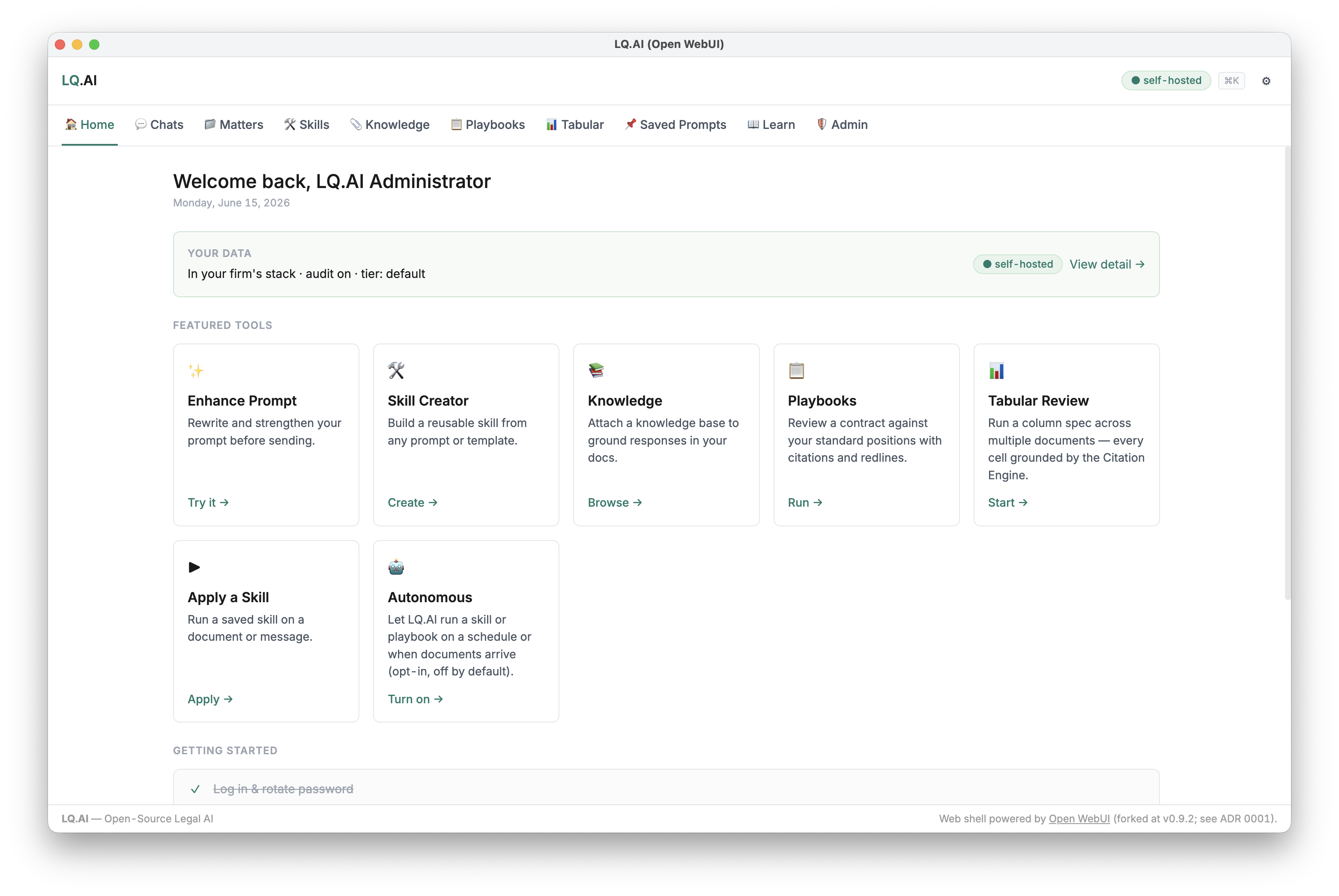
The Home screen after you log in — everything runs on your Mac (note the self-hosted badge). The Featured Tools grid is your jumping-off point: Enhance Prompt, Skill Creator, Knowledge, Playbooks, Tabular Review, Apply a Skill, and Autonomous.
5. Provider keys (BYOK)
Section titled “5. Provider keys (BYOK)”LQ.AI is bring-your-own-key: chat and skills call AI providers (OpenAI, Anthropic, …) using your API key. The stack runs without a key, but chat will not answer until one is present. There are two ways to supply one — use whichever fits:
A. In the setup wizard (easiest). If you pasted a key during setup, you’re already done — chat works as soon as you sign in. Skip the rest of this section.
B. In the app, any time after launch. Add, replace, or revoke keys from the admin Provider keys page — useful if you skipped the wizard field, want to add a second provider, or need to rotate a key.
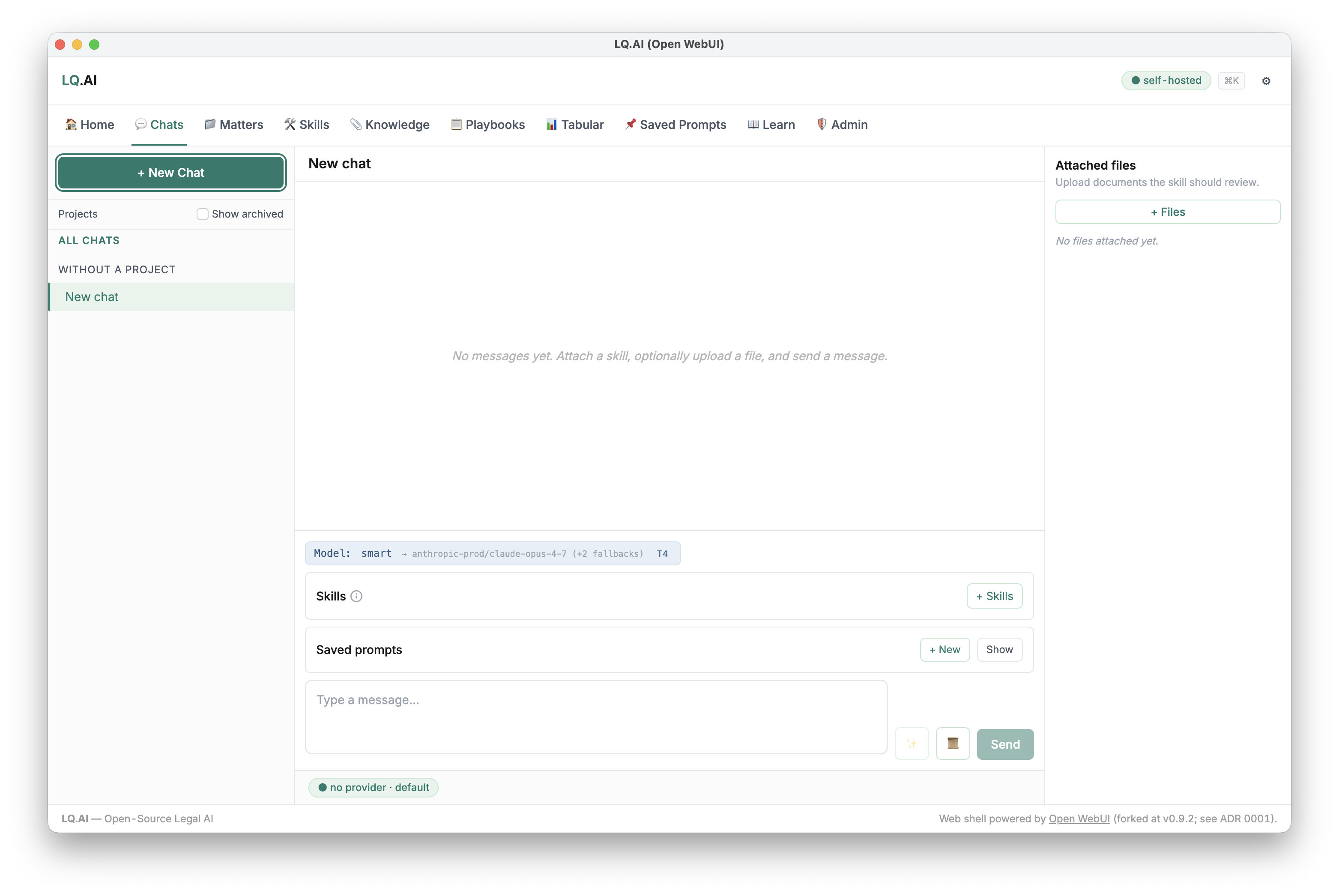
Until a provider key is present, a new chat shows “no provider · default”. Add one on the Provider keys page and it’s hot-applied (no restart).
To add a key in the app:
- Open the admin area and go to Provider keys.
- Find your provider (e.g.
anthropic-prodoropenai-prod) and click Set key. - Paste the key and Save. It’s encrypted at rest and hot-applied with no restart — your next chat uses it immediately. Only the last four characters are ever shown back.
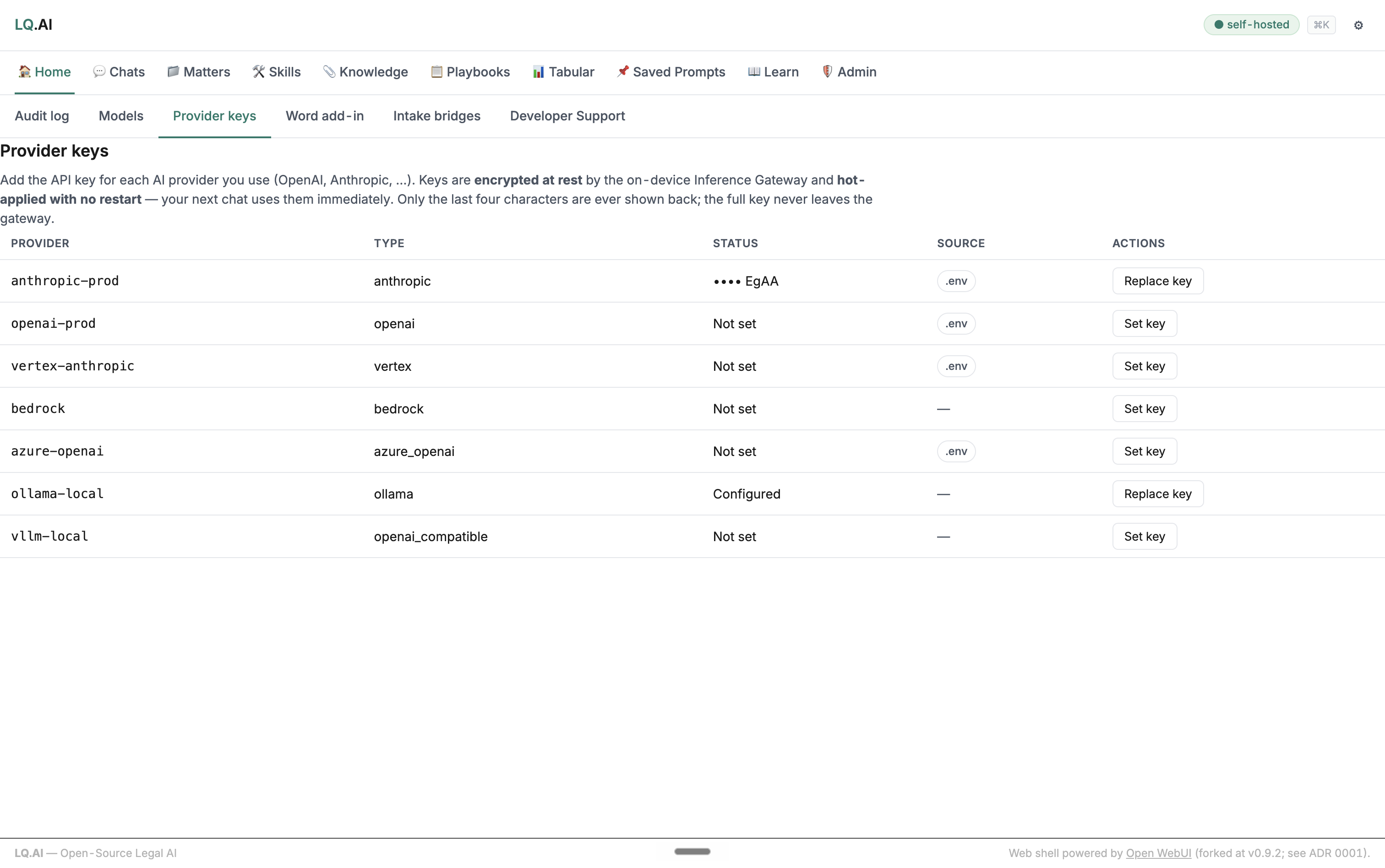
The Admin → Provider keys page. A key set in the setup wizard shows source .env; a key added here is stored encrypted in the gateway (source runtime) and can be revoked in place. Only the last four characters are ever shown.
Your provider keys are held by the engine’s Inference Gateway on your Mac and never leave it; the launcher
stores a key only in the local .env (wizard path) or encrypted in the gateway (in-app path).
Everyday use
Section titled “Everyday use”The LQ.AI app window is your control panel:
- Open LQ.AI — opens the workspace (once the engine is Running).
- Start / Stop — start or stop the engine. Stopping frees up your Mac’s resources; your data is kept and is there next time you Start.
- Logs — a live view of what the engine is doing, handy if something looks stuck.
- Reset… — erases all LQ.AI data on this Mac and re-runs first-time setup (two clicks to confirm). Use this only if you want to start completely fresh.
Inside the workspace, the Featured Tools are where the work happens — apply a Skill to a document, build a Knowledge base, run Tabular Review across many files, or check a contract against your standard positions with a Playbook:
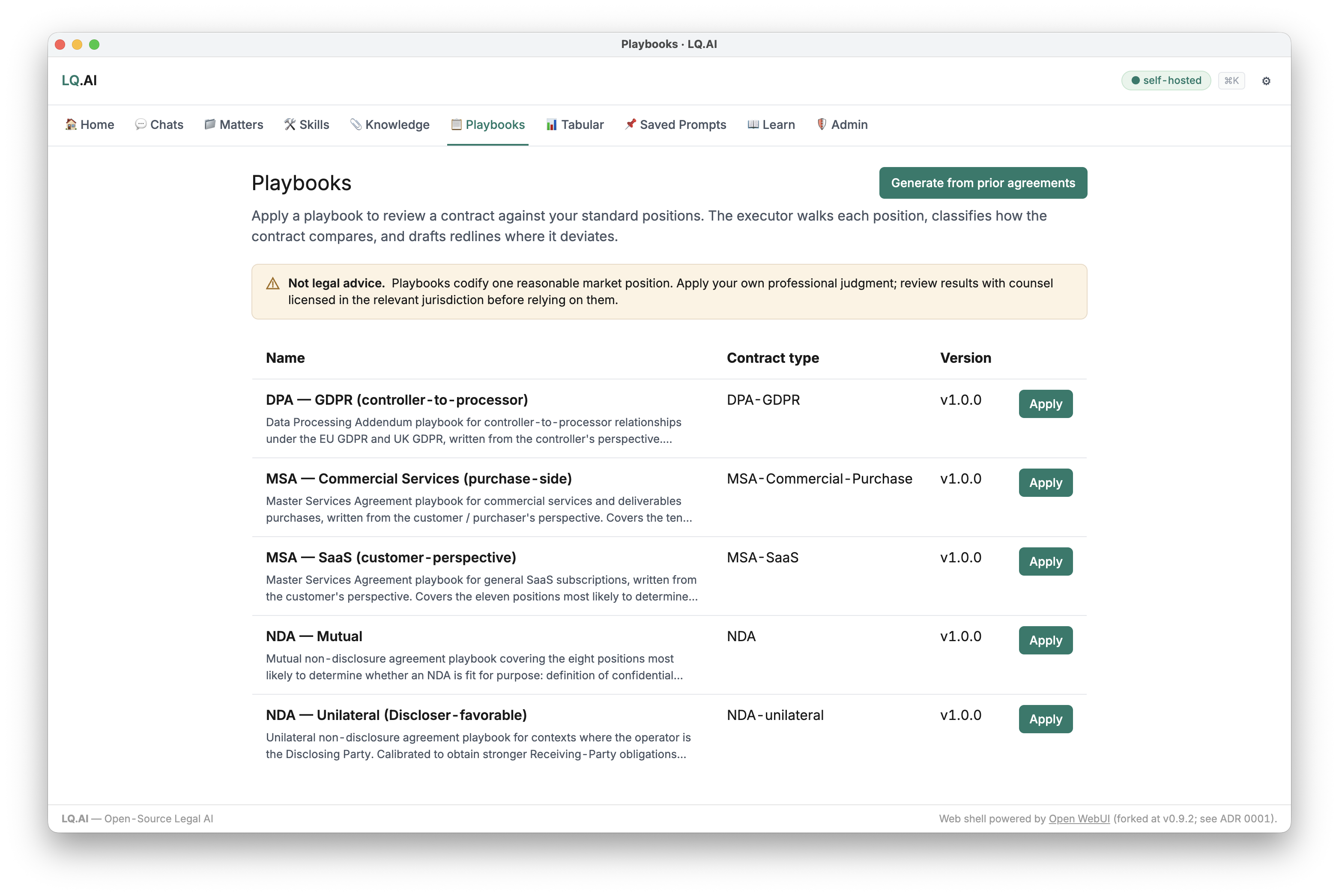
For example, Playbooks — review a contract against your standard positions; each position is classified and redlined.
Because LQ.AI is self-hosted, it’s also fully auditable: every state-changing action is recorded.
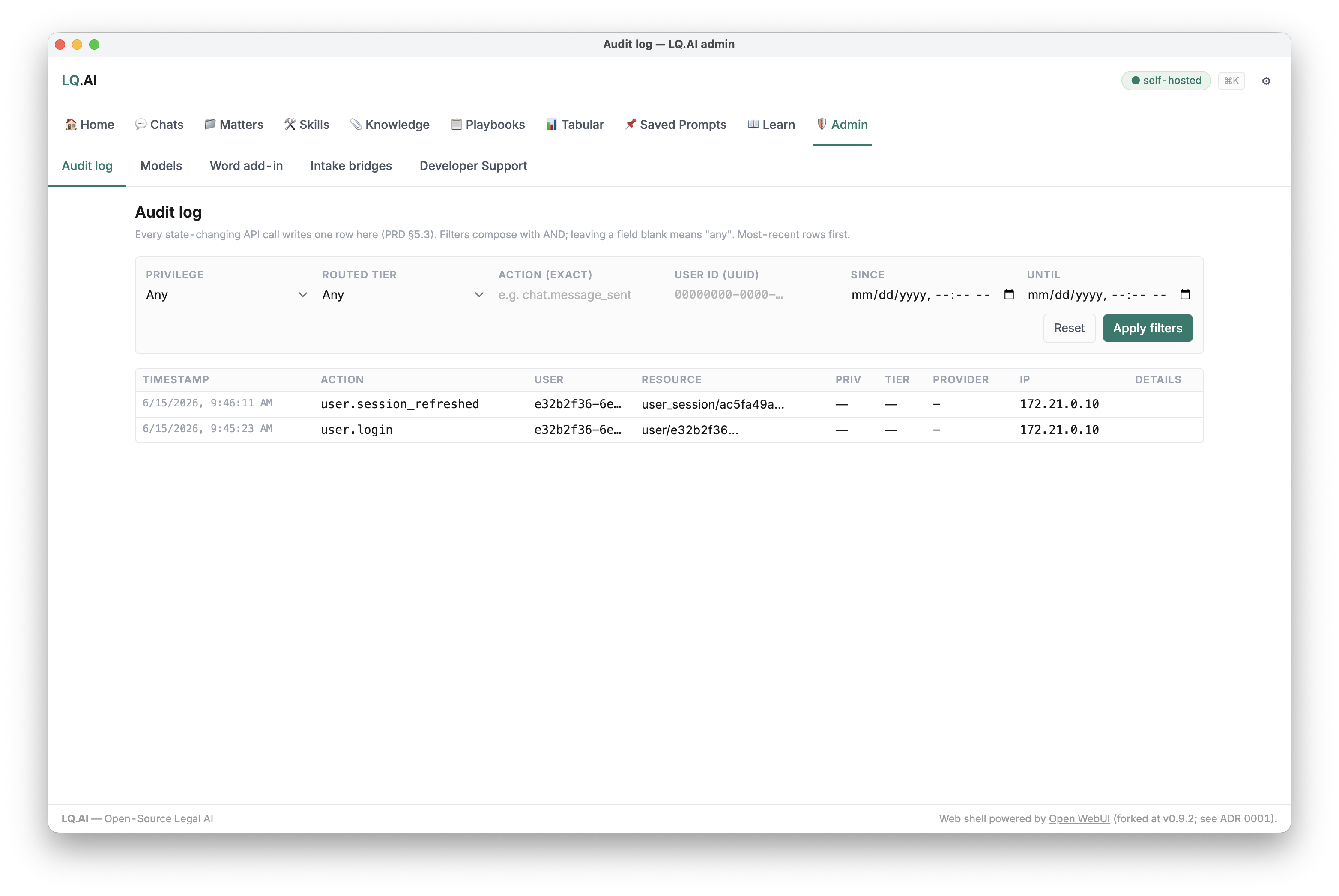
Every state-changing action is written to the Admin → Audit log — self-hosted and fully auditable.
You can quit the app when you’re done. Re-opening goes straight to the control panel — the setup wizard only runs the very first time.
Where the desktop settings live
Section titled “Where the desktop settings live”The launcher’s own state — an encrypted config.enc plus a chmod-600 .env — lives at
~/Library/Application Support/lq-ai-desktop/. The bundled compose file it runs is
/Applications/LQ.AI.app/Contents/Resources/docker-compose.release.yml.
That directory is not where your data lives, though. Your chats, files and audit log live in the
Docker named volumes the launcher’s compose project creates — pgdata, redisdata, miniodata,
lq-ai-ops, gateway-config, ingest-hf-cache, ingest-easyocr-cache
(docker-compose.release.yml) — which Docker holds, not that directory. A backup plan for this
install path has to cover both; see Backup and restore.
If startup stalls
Section titled “If startup stalls”- “Docker is not running.” Start Docker Desktop (the whale icon in your menu bar), wait until it says Running, then click Start in LQ.AI.
- First start is slow. Normal — the engine images and document models download once. Watch the live progress; you can sign in as soon as it says Running.
- Chat says it has no model / fails to answer. You haven’t added a provider key yet — add one in Provider keys (BYOK), above. Chat needs at least one provider key.
The desktop release and engine versions are separate
Section titled “The desktop release and engine versions are separate”One thing worth knowing before you rely on this for anything beyond evaluation: the app and the
engine are two release lines. A release build of the launcher bakes in the engine image tag
matching its own version (desktop-vX.Y.Z → LQ_AI_IMAGE_TAG=vX.Y.Z), writes it into the
generated .env, and realigns it on each launcher upgrade; only a locally built launcher falls
back to latest (docs/BUILD-AND-RELEASE.md). But the spctl and
stapler checks above vouch for the .dmg only — not for the api, gateway, web and proxy images
it then pulls, which the release compose file references by tag rather than by digest
(docker-compose.release.yml). When you report a problem or need a repeatable install, record the
launcher version and the LQ_AI_IMAGE_TAG from that .env together, and the image digests Docker
resolved it to if you need byte-for-byte reproducibility.
How this install relates to the Docker Compose install
Section titled “How this install relates to the Docker Compose install”This app wraps docker-compose.release.yml, which runs the same eight services as the Docker
Compose install plus a ninth, proxy (lq-ai-proxy), that puts the web shell and the api on one
origin and owns the user-facing port. That means the two installs share most of their operational
surface underneath — the same data in Postgres/RustFS, the same reset-admin-password escape hatch
below — but the release stack fronts everything through that proxy instead of exposing web
directly.
Password recovery without a reset
Section titled “Password recovery without a reset”Forgot your password? It doesn’t need the launcher’s destructive Reset… control above, which
erases the stack’s volumes and re-runs first-time setup — your data is untouched by the command
below. It can be reset from a terminal (advanced): the command selects the desktop app’s Compose
file, project and settings file, and always revokes the account’s active sessions. Run it without
--password/--no-force-change and it also generates a temporary password, prints it, and forces
a password change at the next sign-in; the example below instead passes --password and
--no-force-change so you set your own password directly — no forced change, and nothing printed
to keep private. --email is only needed to disambiguate when more than one admin account exists —
the CLI otherwise targets the sole existing admin regardless of its address (api/app/cli.py).
Recover the desktop admin password
Section titled “Recover the desktop admin password”docker compose -f "/Applications/LQ.AI.app/Contents/Resources/docker-compose.release.yml" \ -p lq-ai-desktop --env-file "$HOME/Library/Application Support/lq-ai-desktop/.env" \ exec -T api python -m app.cli reset-admin-password --email admin@lq.ai --password 'YourNewPass123!' --no-force-changeReplace 'YourNewPass123!' with your own password. Leave out --password … --no-force-change to
have it generate a temporary password and print it; you’ll be asked to change it at your next
login.
Prefer the command line?
Section titled “Prefer the command line?”If you outgrow the app — you want to run on Linux, put a real domain in front of it, or edit
gateway.yaml directly — you can skip the app and run the same stack directly with
docker-compose.release.yml and
.env.release.example — see the
Quick Start in the README. See also
docs/operate/reverse-proxy-tls.md for putting a stable URL in front
of either install path.