Set up LQ.AI and try your first document
You can install LQ.AI, sign in and upload a test document without an AI-service key. Start there, then connect a model when you’re ready to ask questions.
LQ.AI is self-hosted: everything below runs in Docker containers on your machine. The Inference Gateway handles model requests and enabled research/connector tool calls. Other configured services, such as email notifications and monitoring, can have their own outbound connections; review what information leaves the deployment. The README has a shorter version of these same steps; this page adds the explanation, the exact values, and the troubleshooting for each one.
If you run into trouble, jump to Troubleshooting at the end. If your problem isn’t covered there, file a GitHub issue with the quickstart label and we’ll add it.
Before you start
Section titled “Before you start”Use a fictional document for this first installation. You need Git and Docker with Docker Compose, internet access for the initial downloads/build, and someone responsible for maintaining the deployment. You can sign in and check document extraction before connecting an AI service. AI answers and knowledge-base search need their own model configuration.


First get the files, set the secrets, start the app, sign in, and upload a fictional document. These steps do not require an AI provider key. A ready document confirms extraction. Then configure the models needed for the task, ask a test question, and inspect the answer and its sources; extraction alone does not verify AI output.
Diagram source
flowchart TB
    accTitle: Check the app first, then check the AI workflow
    accDescr: First get the files, set the secrets, start the app, sign in, and upload a fictional document. These steps do not require an AI provider key. A ready document confirms extraction. Then configure the models needed for the task, ask a test question, and inspect the answer and its sources; extraction alone does not verify AI output.
    subgraph setup["Install and check the app"]
        direction LR
        files["Get the files"] --> secrets["Set four secrets"]
        secrets --> start["Start the app"]
        start --> signin["Sign in"]
        signin --> upload["Upload a fictional document"]
    end
    subgraph ai["Configure models and check the output"]
        direction LR
        models["Connect the models you need"] --> ask["Ask a test question"]
        ask --> review["Inspect the answer and its sources"]
    end
    setup -->|ready confirms extraction| ai
1. Get the files
Section titled “1. Get the files”You’ll need Git and Docker — Docker Desktop (or a compatible runtime), or Docker Engine 24+ on Linux — with Docker Compose working on your computer. Verify with docker info. Clone the repository and copy .env.example to .env:
git clone https://github.com/legalquants/lq-ai.gitcd lq-aicp .env.example .envThe commands ahead build the app from source, so allow time and disk space for both the build and the image downloads.
Read more: Details
Details
Section titled “Details”- A provider key isn’t required yet. You can bring the stack up, sign in and upload a test document with no AI-provider key set at all — only the four secrets in Step 2 are required. A key is only needed once you want the app to actually call a model — see Step 6.
- What you don’t need at all: any pre-existing legal-AI experience, or a working knowledge of LangGraph, OpenWebUI, or any of the other components.
- Timing. About 15 minutes once the stack is up. The first
docker compose upitself takes longer — it builds the application images (api,gateway,web, and the workers) as well as pulling the infrastructure images, so how long it takes depends on your hardware, Docker’s build cache, and your network speed. Subsequent runs reuse the images and start in seconds. - Network. The initial
docker compose upneeds a connection to pull and build images. If you go on to use a cloud provider (Mode 1), every chat request — and the defaultembeddingalias used for knowledge-base search — also needs a connection for the whole demo, not just the first boot. Only Mode 2 (local Ollama, once fully set up — see Step 6) runs offline after setup.
2. Set four secrets
Section titled “2. Set four secrets”In .env, give POSTGRES_PASSWORD, OBJECT_STORE_SECRET_KEY, LQ_AI_GATEWAY_KEY and JWT_SECRET separate random values. They protect the database, the file store, and communication between services. Docker Compose won’t start while any of these is empty. Keep .env private; don’t commit it to Git.
.env.example’s own comments give a one-liner for generating each one:
# POSTGRES_PASSWORD, OBJECT_STORE_SECRET_KEY, LQ_AI_GATEWAY_KEYpython -c 'import secrets; print(secrets.token_urlsafe(32))'
# JWT_SECRETpython -c 'import secrets; print(secrets.token_urlsafe(64))'
Read more: Details
Details
Section titled “Details”OBJECT_STORE_SECRET_KEYis the root secret for the bundled S3-compatible object store,rustfs(it replaced the earlier MinIO service; ADR 0036). The legacy nameMINIO_ROOT_PASSWORDis still accepted as a fallback for existing installs, but a new install should setOBJECT_STORE_SECRET_KEY.- Provider keys aren’t limited to
.env. OnceLQ_AI_GATEWAY_MASTER_KEYis set, an admin can add, rotate, and revoke keys at runtime through the admin provider-keys surface (/api/v1/admin/provider-keys), which encrypts the key intogateway.yamland hot-applies it to the live gateway — no restart. The.envpath here is the simplest for a first run. Seegateway.yaml.example.
3. Start the app
Section titled “3. Start the app”Run docker compose config --quiet first — it catches a blank POSTGRES_PASSWORD, LQ_AI_GATEWAY_KEY, or JWT_SECRET immediately, before anything is pulled or built. OBJECT_STORE_SECRET_KEY is checked separately, once the stack starts, by the rustfs-init service — leave it blank and the build will still run before the stack fails. Then bring the stack up:
docker compose config --quiet && docker compose up -d --buildUse docker compose ps to see whether the services have started. The initial admin password is printed once in the API container’s logs:
docker compose logs api 2>&1 | grep "First-run admin password"Save the password — you’ll use it in the next step.
Read more: Details
Details
Section titled “Details”- First run brings up the eight always-on services —
postgres,redis,rustfs,gateway,api,ingest-worker,arq-worker,web— plus one one-shot init container,rustfs-init, that exits once it finishes.postgres,redisandrustfsare pulled;gateway,api,weband the two background workers are built from your checkout, so the first start does real build work, not just downloads. (The local-Ollama--profile localand Slack/Teams--profile slack/--profile teamsservices are opt-in Compose profiles, not part of a plain first start.) - Database migrations run automatically too, inside the
apicontainer’s own startup (alembic upgrade head) rather than as a separate container. A standalonemigrateservice exists behind--profile ops, but that’s an on-demand ops tool for the MinIO→RustFS storage migration, not something a firstdocker compose upruns. docker compose psshould report the long-running services asUp(those with health checks showhealthy); the init container shows as exited — that’s expected, not a failure.- The entry points, once it’s up:
- LQ.AI shell: http://localhost:3000/lq-ai
- API documentation: http://localhost:8000/docs
- Inference Gateway: http://localhost:8001/docs
4. Sign in
Section titled “4. Sign in”Open http://localhost:3000/lq-ai. Use admin@lq.ai and the password from the previous step, then set a permanent password when prompted. The home page then shows a Getting started checklist of five tasks, ticking off as you do them: Log in & rotate password, Run a skill on a document, Try Enhance Prompt, Attach a knowledge base, and Save a prompt as a skill. Tasks that ask the AI for a result need a connected model (Step 6).
Read more: Details
Details
Section titled “Details”- The LQ.AI chat shell lives at
/lq-aiper ADR 0009; the upstream OpenWebUI shell at/is preserved untouched and isn’t the canonical experience for this walkthrough. - Forgot to copy the bootstrap password? Type any password and submit. While the deployment is still in fresh-install state, the login screen surfaces an inline hint with the exact log command above and a one-click copy button (M3-0.1 / DE-283). The hint hides itself once you’ve set your permanent password.
- The default admin email is
admin@lq.ai. It comes from a backend setting read only on the very first boot; the shippeddocker-compose.ymldoesn’t pass a value for it into theapicontainer, and the container doesn’t read your.envfor it either, so setting it in.envalone has no effect. To change it before the first start, addFIRST_RUN_ADMIN_EMAIL: <email>to theapiservice’senvironment:block — e.g. in adocker-compose.override.yml. - Admin tip — Settings → Models. Once signed in as an admin, a Settings link in the top-right of the shell opens the model alias editor at
/lq-ai/admin/models, where you can edit thesmart/fast/budget/local/embeddingaliases without restarting the gateway. Edits writegateway.yamlatomically and hot-reload the gateway in process; in-flight requests finish on the prior config. See ADR 0010.
5. Upload a test document
Section titled “5. Upload a test document”Open Matters in the sidebar (/lq-ai/matters) — the shell calls Projects “matters” — and click + New matter. Give it an obvious test name, then open the matter, click + New Chat, then click + Files and upload a short Markdown or plain-text file containing made-up information. Wait for its status to become ready. That confirms the app extracted the text; document search and AI answers need their own model settings (Step 6).
LQ.AI in action
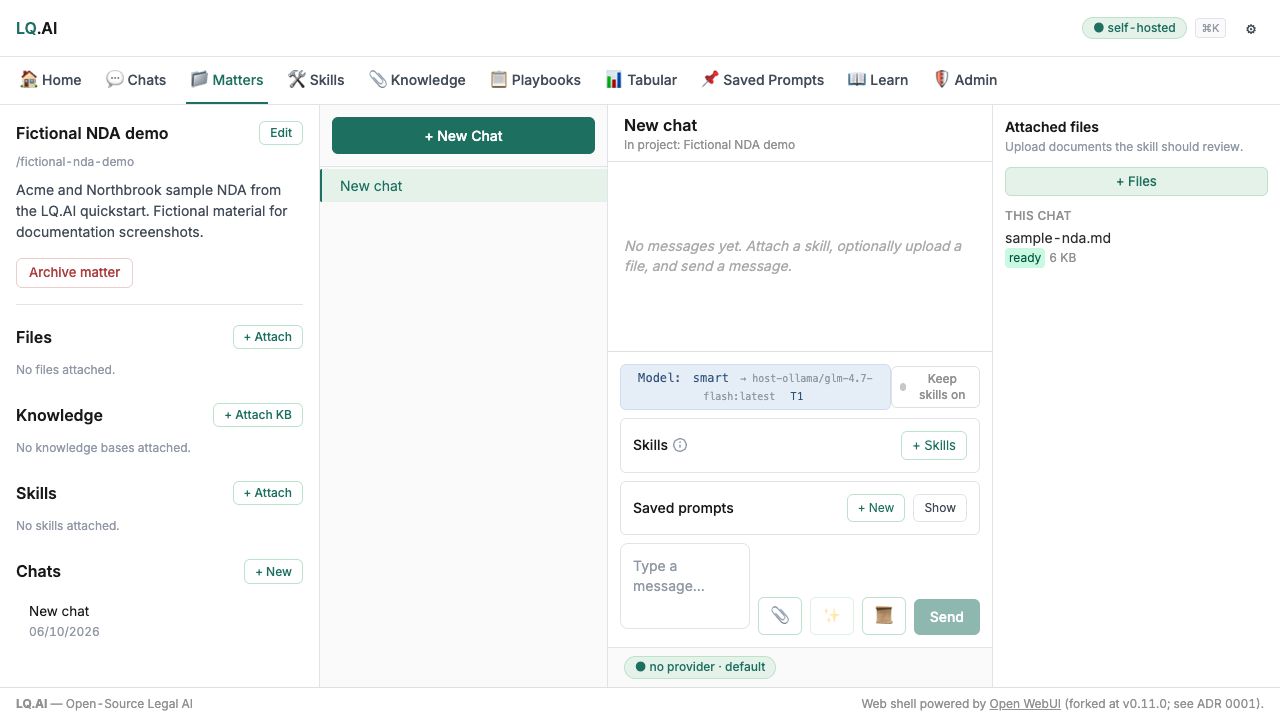
These examples use fictional material. AI answers require review; each caption identifies the workflow shown.
See more product examples
Read more: Details
Details
Section titled “Details”- A matter (Project) is more than a folder for a file: it’s a matter-scoped container for chats, files, skills, playbooks, and a free-form context document scoped to a single matter. Chats inside it automatically inherit its attachments and context.
- For a ready-made test document, the repository ships a short, synthetic mutual NDA with several deliberate issues at
docs/quickstart/sample-nda.md— built for exactly this walkthrough (and for Try a skill when a model is connected below, once you have a model connected). - An example matter, if you want a concrete one to follow along with:
- Name:
Acme Discussions - Description:
Northbrook–Acme NDA review for potential business relationship - Context document: a sentence or two on who the parties are and where things stand — chats in the matter inherit this automatically.
- Name:
- Privileged flag. Leave it off for a test matter. For a privileged matter, ticking Attorney-client privileged requires you to also set a minimum Inference Tier floor — the form won’t submit without one — and marks every chat in the matter as privileged in the audit log. See PRD §3.11 for the full mechanics.
6. Connect an AI model
Section titled “6. Connect an AI model”LQ.AI has connections for Anthropic, OpenAI (or any OpenAI-compatible endpoint), Azure OpenAI, and Ollama (for a fully local setup). Choose a configured model name in the app. Ollama lets you run a model on your own computer — starting its Docker profile doesn’t by itself switch the app to that model: check the chat model, its backup choices, and the document-search (embedding) model too.
Details: a cloud provider key (Mode 1)
Section titled “Details: a cloud provider key (Mode 1)”Applicable when you have chosen a supported cloud provider and are ready for that service to receive the request content.
Add a key to .env — the relevant lines:
# Anthropic (recommended — Claude is what the starter skills are calibrated to)ANTHROPIC_API_KEY=sk-ant-...your-key-here...
# OR OpenAI# OPENAI_API_KEY=sk-...your-key-here...- There’s no
.envswitch for the default model: chats default to thesmartalias (claude-opus-4-7in the shippedgateway.yaml.example). Choose another model or alias in the chat’s model picker, or repoint the alias under Settings → Models once signed in. - The starter skills are model-agnostic but were drafted and calibrated against Anthropic’s Claude family; a different provider’s output will be similar in shape but may differ in calibration nuance.
gateway.yaml.examplealso carries example entries for Google Vertex and AWS Bedrock, but no adapter ships for those provider types yet — a key for them won’t route anything.
Details: local Ollama (Mode 2)
Section titled “Details: local Ollama (Mode 2)”Applicable when you want the chat model to run on infrastructure you control. Check document-search and fallback settings separately; local chat alone does not establish that the whole workflow is offline.
docker compose --profile local up -ddocker compose exec ollama ollama pull qwen3.5:9b # a few GB — pull before the first inference call- The local profile does one thing: it starts an
ollamacontainer alongside the rest of the stack. It does not move your chats onto it. gateway.yaml.exampleships three Tier-1 aliases that route to it athttp://ollama:11434:localandlocal-thinking(bothqwen3.5:9b), andlocal-fast(qwen3.5:4b-nvfp4— a different tag, pulled separately). The defaultsmart/fast/budgetaliases still point at cloud providers, andembeddingstill points at OpenAI (the Ollama adapter doesn’t serve embeddings yet, so knowledge-base search stays cloud-backed even in this configuration). Pick alocal-*alias in the chat’s model picker, or repointsmartunder Settings → Models and drop its cloud fallbacks.- Repointing an alias at a different local model means editing the live
gateway.yaml, notgateway.yaml.example: on first boot the gateway entrypoint copies the example into the config volume only if nogateway.yamlis there yet, and never reads the example again after that. Use Settings → Models (hot-applies), or edit the file inside the volume anddocker compose restart gateway. - Operators running Ollama on the host (rather than in the Compose stack) set
OLLAMA_BASE_URL=http://host.docker.internal:11434in.envand skip--profile local. Nothing in the profile itself blocks egress — if you need that guarantee, isolate the network at the deployment layer.
Check that it worked
Section titled “Check that it worked”Check each result separately:
- Installation: the long-running services are Up; services with health checks report healthy. The completed
rustfs-initcontainer may show as exited. - Access: you can sign in at
/lq-aiand have changed the initial password. - Extraction: your fictional document reaches
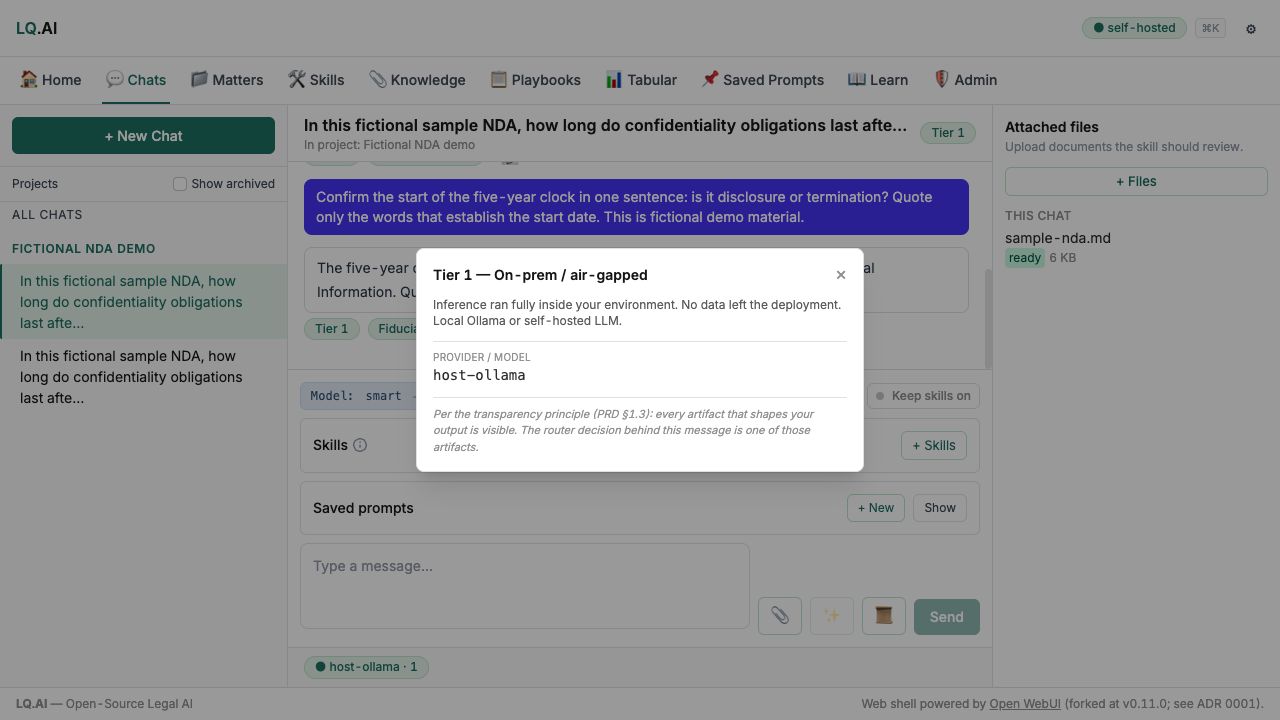
ready. This confirms text extraction, not a successful AI answer or knowledge-base search. - Model use: after configuring the appropriate models, ask a test question and confirm you receive a result. Check the displayed Inference Tier against your intended arrangement.
- Sources: when testing a document-based answer, open its cited source and check the passage yourself.
Return to Troubleshooting if a check fails.
LQ.AI in action
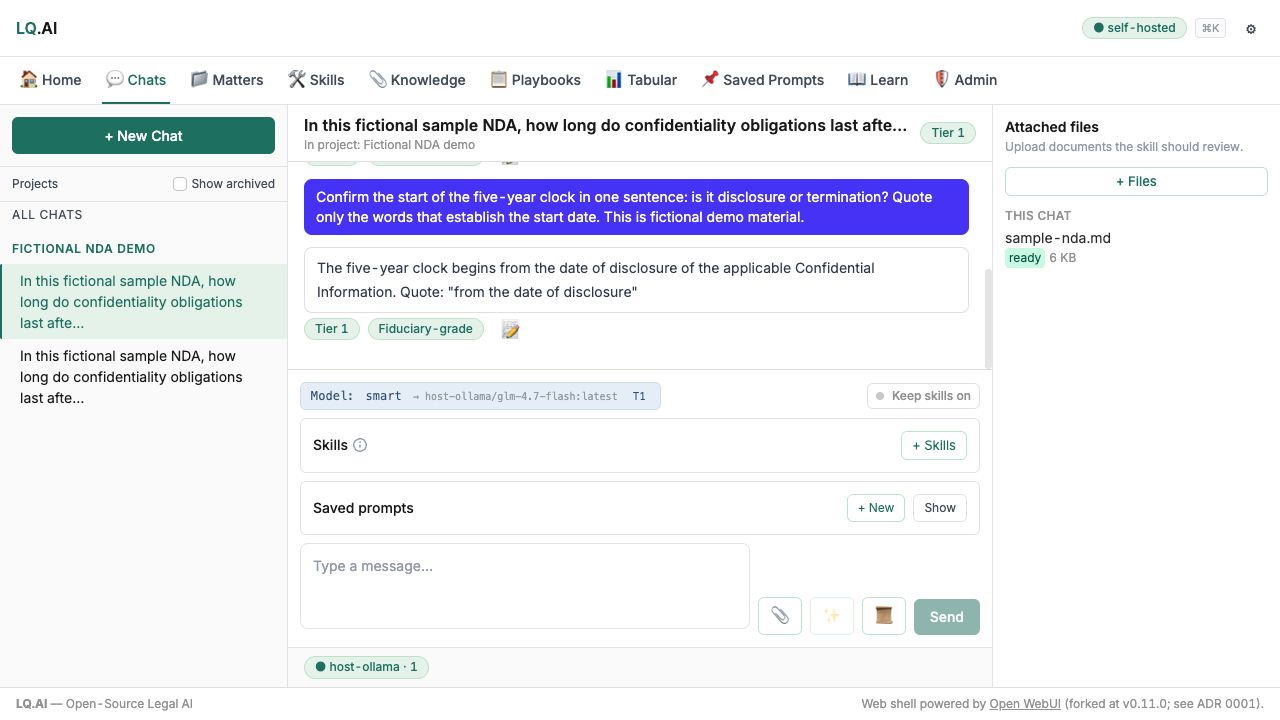
These examples use fictional material. AI answers require review; each caption identifies the workflow shown.
See more product examples
Add your organization’s background
Section titled “Add your organization’s background”An admin can edit the Organization Profile, a Markdown document at the deployment level with information about your team — voice, jurisdiction, industry, standard positions, and escalation thresholds. Signed-in users can read it. It’s added automatically to the prompt of any attached skill unless that skill’s own frontmatter turns it off (use_organization_profile: false); a chat with no skill attached doesn’t include it this way. Skipping this and coming back later is fine.
Details
Section titled “Details”The shell has no profile editor page yet: an admin sets it through the API — PUT /api/v1/organization-profile with a JSON body {"content_md": "..."} — try it from http://localhost:8000/docs, signed in as the admin. Read it back at any time with GET /api/v1/organization-profile; there’s no hidden layer.
A simple starter Profile is fine for the demo:
# Northbrook Legal Department
We are the in-house legal team at Northbrook Technologies, Inc., a B2B SaaScompany headquartered in California. Our customers are mid-market andenterprise organizations across financial services, healthcare, andprofessional services.
## Voice and tone- Direct, plain-language. We avoid legalese where common-language equivalents  exist; we preserve technical legal terminology where precision matters.- Conservative on enforceability questions; we surface issues for escalation  rather than asserting outcomes.
## Standard positions- Customer-side MSAs: 12-month-fees liability cap is acceptable; uncapped  indemnification for data-breach scenarios is not.- Vendor-side MSAs: we negotiate suspension rights for non-payment; we do  not accept unlimited customer-favorable IP indemnification.- DPAs: GDPR Article 28(3) compliance is non-negotiable; SCCs are the  preferred international transfer mechanism.
## Escalation thresholds- Any contract value > $500K → engage outside counsel for review.- Any litigation hold → escalate to GC.- Any data breach affecting > 1,000 records → escalate to GC and Privacy Officer.
Check the Inference Tier policy
Section titled “Check the Inference Tier policy”There’s no tier-policy page in the shell; an admin reads or adjusts it via GET / PATCH /api/v1/admin/tier-policy (the policy itself lives in the gateway’s tier_policy block in gateway.yaml). By default the deployment allows Tiers 1–4 and warns on Tier 4 rather than blocking. For a first run, leave the defaults — a standard commercial cloud API key is most likely Tier 4, and the warning surfaces transparently in the chat UI.
If your provider account has enterprise terms with zero data retention (ZDR), you can configure that provider as Tier 3 in the gateway YAML instead. Check your provider’s actual agreement before assigning a tier — the per-provider compliance matrix the PRD describes hasn’t been written yet (docs/compliance/ currently holds only a README stating the pack’s scope and status).
If you lose the password
Section titled “If you lose the password”docker compose exec api python -m app.cli reset-admin-passwordThis resets the admin password, prints the new one, sets must_change_password=true so it must be changed on the next login, and revokes existing sessions. You don’t need to delete stored data to regain access, and it works the same whether the deployment is brand new or established. If you’re scripting a reproducible setup rather than recovering a lost password, --password VALUE --no-force-change sets a known password directly instead of generating one.
Only if you explicitly want a clean slate on a brand-new install with nothing in it yet, wiping the volumes also re-runs the bootstrap — but this destroys all local data, so never use it on a deployment you actually use:
docker compose down -v # WARNING: destroys ALL local data — first-run installs onlydocker compose up -ddocker compose logs api 2>&1 | grep "First-run admin password"Try a skill when a model is connected
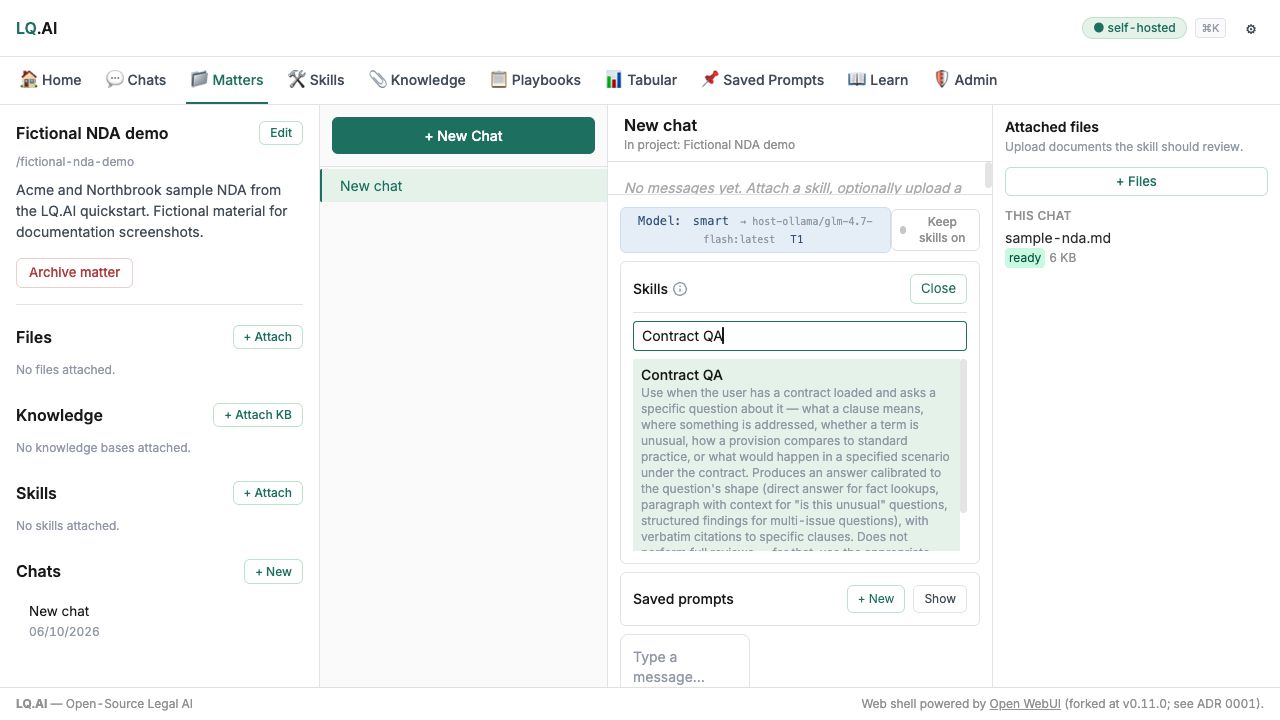
Section titled “Try a skill when a model is connected”Attach your test document and choose a relevant skill, such as NDA Review for a made-up NDA. Supply the perspective and other inputs the skill asks for. Read its instructions first, then compare each quotation, finding and suggested change against the document. Check the model and privacy-tier information shown with the answer.
Details: running NDA Review against the sample document
Section titled “Details: running NDA Review against the sample document”In the matter view:
- Click + New Chat. It opens with the matter’s attachments and context document already in the chat’s context.
- Click + Files and upload
sample-nda.md(or download it fromdocs/quickstart/sample-nda.mdon GitHub). - Click + Skills and select NDA Review.
- Fill in Perspective (
recipient— Northbrook is receiving the NDA from Acme) and Deal type (vendor procurement); leave other inputs at their defaults. - Type something like “Please review.” and hit Send — or click Run skill, since the skill is already attached. This is also a chance to try Enhance Prompt: click the lightning-bolt icon next to the chat input and watch the prompt get rewritten into a structured one before submission.
Streaming output appears over roughly 30–60 seconds depending on your model and connection.
Details: reading the output
Section titled “Details: reading the output”The output is a structured markdown report:
- Bottom line — two-three sentences leading with the recommendation, not with analysis (e.g. “We recommend negotiating before executing. The 5-year survival period and the asymmetric return-or-destruction certification are material to a recipient party…”). If it instead opens with “This NDA contains the following provisions…”, that’s a calibration regression worth flagging.
- Findings — severity-tagged (
Critical/Material/Minor, per the severity rubric) with citations, and usually clean, drop-in replacement language. - Citations are visibly verified. Every
"<quote>" (Source: [N])the skill emits is run through the Citation Engine — a 4-stage cascade (exact match → tolerant match → paraphrase judge → optional ensemble) that re-reads the cited text against the source document before rendering:- Green check + underline — verified verbatim, or after minor formatting normalization (whitespace, smart quotes, OCR confusions).
- Yellow check + underline — verified by the paraphrase judge or by ensemble; the source supports the claim, possibly with caveats — hover the citation chip for the judge’s confidence.
- Greyed text +
[unverified]— the cascade couldn’t match the model’s quote against the source; treat it as unverified.
- “What this skill does not do” — every starter skill enumerates its own limits (e.g. NDA Review doesn’t give jurisdiction-specific enforceability opinions, or substitute for review by qualified counsel). This tells you when to escalate rather than relying on the output as the answer.
Details: inspecting the skill
Section titled “Details: inspecting the skill”Click the skill’s badge in the chat header. A panel shows its actual SKILL.md and supporting reference files — the real prompt and references that ran, not a stylized version (PRD §1.3). If your team’s calibration disagrees with it — say, a 5-year survival period should be Critical rather than Material in your practice — click Fork this skill, edit the reference file (e.g. reference/severity_rubric.md), and use your fork going forward. Your fork is yours.
Details: the Inference Tier badge and audit log
Section titled “Details: the Inference Tier badge and audit log”Click the Tier badge in the chat header for the routed tier, the provider, and what the tier implies (where the data is going, the provider’s retention policy). Every routing decision is in the audit log (Admin → Audit Log, searchable by chat ID), including:
anonymization_applied— whether the gateway’s Anonymization Layer substituted detected entities with pseudonyms before forwarding to the provider; the pseudonym table itself lives only in process memory for the request and never persists. It’s off by default (anonymization.enabled: falseingateway.yaml.example), so expectfalseon a fresh install until you opt in. Seedocs/security/anonymization.md.privilege_marked/privilege_basis— whether the chat sat in a privileged matter, and which one.
Under PRD §1.5.2, lower tier numbers are stronger: minimum_inference_tier: 2 allows Tier 1–2 and refuses Tier 3–5. Set a floor on a matter or on a specific skill, or disallow tiers globally via allowed_tiers_global in gateway.yaml. See also §1.8 Security Posture.
Common setup problems
Section titled “Common setup problems”If a port is already in use, change the corresponding *_HOST_PORT value in .env — another Postgres installation commonly already uses 5432. If no model is available, check both the provider settings and the selected model name. A privacy-tier refusal means the selected route doesn’t meet the request’s requirement; choose a permitted model rather than weakening the requirement just to clear the error. Exact error text and fixes are in Troubleshooting below.
Set access before inviting others
Section titled “Set access before inviting others”Change the initial password. If you want MFA — recommended for any deployment handling client-confidential data, skippable for a quickstart on a personal machine — enable it and you’ll set up TOTP with your authenticator app on the next sign-in. Decide who should have admin access and which matters they should see. An organization profile gives a skill background information; it does not replace permissions or privacy settings.
Commands for a new installation
Section titled “Commands for a new installation”Copy the example settings, edit .env, then run the configuration check before starting. Use these commands for a new installation:
git clone https://github.com/legalquants/lq-ai.gitcd lq-aicp .env.example .env# Edit .env: set POSTGRES_PASSWORD, OBJECT_STORE_SECRET_KEY, LQ_AI_GATEWAY_KEY,# JWT_SECRET, and at least one provider key.docker compose config --quietdocker compose up -d --builddocker compose psdocker compose logs api 2>&1 | grep "First-run admin password"Verify the M3 surfaces (optional, fresh-install walkthrough)
Section titled “Verify the M3 surfaces (optional, fresh-install walkthrough)”Everything above covers getting the app running and trying your first document and skill. This section is a deeper, optional walkthrough of the M3 capabilities — Playbooks, Tabular Review, and the Word add-in — end to end, using a synthetic NDA corpus. It isn’t needed for a first run; skip it unless you specifically want to exercise these surfaces.
Bring the stack up with the optional intake bridges
Section titled “Bring the stack up with the optional intake bridges”The Slack and Teams intake bridges are opt-in Compose profiles:
docker compose --profile slack --profile teams up -d --buildYou should see ten healthy services: api, gateway, web, postgres, redis, rustfs, arq-worker, ingest-worker, slack-bridge, teams-bridge. (Omit the --profile flags to skip the bridges — see the intake-bridges doc for what the bridges need before they’re useful; a real Slack/Teams OAuth round-trip hasn’t yet been exercised end-to-end — DE-312.)
Confirm the migration head is current:
docker compose exec api alembic current # expect 0045 (head)Attach the synthetic corpus
Section titled “Attach the synthetic corpus”The repo ships five synthetic mutual NDAs at docs/quickstart/sample-ndas/ (and sample MSAs at docs/quickstart/sample-msas/). Upload the five NDA PDFs (Knowledge → upload, or attach them to a matter) and wait for each to reach ready. The corpus varies on five negotiation axes — see its README.
Run a built-in Playbook
Section titled “Run a built-in Playbook”Open Playbooks. Five built-ins are seeded (NDA — Mutual, NDA — Unilateral, MSA — SaaS, MSA — Commercial-Purchase, DPA — GDPR). Apply NDA — Mutual to one uploaded NDA — the run retrieves, classifies, redlines, and compiles a per-position assessment (for NDA-Mutual, eight positions, each with a verdict, a confidence, and the verbatim matched_text). See docs/playbooks.md. (These references are FTS-anchored matched_text, not the M2 Citation Engine cascade — that integration is deferred.)
Generate a Playbook from prior agreements
Section titled “Generate a Playbook from prior agreements”Open Playbooks → Generate from prior agreements. Pick contract type NDA, upload (or select) all five sample NDAs, and click Generate playbook — the wizard parses each file, then runs clustering on the arq-worker (typically 3–6 minutes for five documents). Edit / approve / save the resulting positions. See docs/playbooks.md. (Clustering currently over-segments the corpus’s five designed axes — DE-308.)
Run a Tabular Review across the five NDAs
Section titled “Run a Tabular Review across the five NDAs”Open Tabular Review, select the five NDAs, and define a few columns (or pick a output_format: table skill). Confirm the cost preview, run, then click any cell to open the citation drawer. Export to XLSX or CSV. See docs/tabular-review.md. (Per-cell citations are display-only chunk references — DE-309; per-cell cost/tier read 0 — DE-310.)
Install the Word add-in (unsigned-manifest path)
Section titled “Install the Word add-in (unsigned-manifest path)”Open Admin → Word add-in (/lq-ai/admin/word-addin) and generate a manifest — it templates your deployment URL into the XML. Sideload it in Word desktop via the Microsoft 365 Admin Center (it will warn about the unsigned add-in — expected at v0.3.0). The in-pane feature surface (chat, skills, playbooks) is deferred to M4 (DE-287); the signed/distributed manifest is community-led (DE-295). See docs/word-addin.md.
Troubleshooting
Section titled “Troubleshooting”docker compose up hangs on first run
Section titled “docker compose up hangs on first run”First-run image pulls and the application-image builds are the slow steps. Verify with the build output in your terminal and docker compose logs -f — if images are downloading or build steps are progressing, it’s working. If logs are silent, check Docker Desktop is running and docker info succeeds.
docker compose up fails with “address already in use”
Section titled “docker compose up fails with “address already in use””If startup fails with ports are not available: ... bind: address already in use on 5432 (Postgres), 6379 (Redis), or 9000/9001 (RustFS), you already have a host service holding that port — commonly a Homebrew/Postgres.app Postgres on 5432. Remap the host-side port in .env and re-run:
# .env — host-side mapping only; the stack's internal traffic stays on 5432POSTGRES_HOST_PORT=15432The application services reach Postgres over the Docker network at postgres:5432 regardless, so remapping the host port only changes how you reach it with host tooling (psql -h localhost -p 15432). The same pattern applies to REDIS_HOST_PORT / OBJECT_STORE_API_HOST_PORT / OBJECT_STORE_CONSOLE_HOST_PORT.
“First-run admin password” doesn’t appear in logs
Section titled ““First-run admin password” doesn’t appear in logs”See If you lose the password above: docker compose exec api python -m app.cli reset-admin-password works on a fresh install and an established deployment alike, without touching any data. Wiping the volumes with docker compose down -v also re-triggers the bootstrap, but only do that on a brand-new install with nothing in it yet — it destroys all local data.
Chat returns “no model configured”
Section titled “Chat returns “no model configured””Verify your .env has at least one provider key set and that it matches the model alias in your chat. The default model alias is smart; verify the alias resolves to a configured provider in gateway.yaml.
Citation engine fails on the sample NDA
Section titled “Citation engine fails on the sample NDA”The sample is markdown rather than PDF. The Citation Engine handles markdown with synthetic page boundaries; if you see verification errors, check the API logs. The ingestion pipeline is PyMuPDF and parses text-bearing documents only — there is no OCR step (scanned-PDF OCR is not implemented; DE-320), so a verification miss on your own upload usually means the file has no extractable text, not an OCR configuration issue. Confirm the document carries extractable text rather than being a scanned image.
“Tier N not allowed” message
Section titled ““Tier N not allowed” message”Your deployment’s allowed_tiers_global disallows that tier, or the routed provider doesn’t match your policy — either re-enable the tier for the quickstart or upgrade your provider configuration in gateway.yaml.
“I want to use Mode 2 (local Ollama) instead”
Section titled ““I want to use Mode 2 (local Ollama) instead””See Connect an AI model → Details: local Ollama above for the setup commands and the alias/gateway-config gotchas. Mode 2 is the air-gap-capable mode: once images are pulled, models are downloaded, and every alias you use (including embedding, if you use knowledge bases) points at a local provider, the deployment runs without internet. The starter skills run against a local model with calibration nuance that differs from the cloud Tier 4 path — expect different (typically slightly less polished) output than Claude / GPT-4.
To exercise the local path with curl:
# After the stack is up and qwen3.5:9b is pulled, the local-thinking alias# dispatches to Ollama at Tier 1. (local-fast expects qwen3.5:4b-nvfp4 instead.)curl -X POST http://localhost:8001/v1/chat/completions \ -H "X-LQ-AI-Gateway-Key: ${LQ_AI_GATEWAY_KEY}" \ -H "content-type: application/json" \ -d '{"model": "local-thinking", "messages": [{"role": "user", "content": "hello"}]}'“I see the OpenWebUI shell at /, not the LQ.AI shell”
Section titled ““I see the OpenWebUI shell at /, not the LQ.AI shell””That’s expected: the upstream OpenWebUI fork’s chat shell lives at / and is preserved untouched per ADR 0009. The LQ.AI canonical experience is at /lq-ai — point your bookmark there. If you want / to redirect to /lq-ai instead, add a one-line +page.svelte at web/src/routes/+page.svelte (or (app)/+page.svelte) that calls goto('/lq-ai') on mount. This is an operator-side decision; the upstream-shell-at-/ posture is the default so the OpenWebUI fork’s other features (admin, RAG, model management) remain reachable for operators who want them.
My issue isn’t here
Section titled “My issue isn’t here”File a GitHub issue with the quickstart label. Include: your OS and Docker version, the output of docker compose ps, the relevant log excerpt, and what you were doing when the issue surfaced. We’ll add common gotchas to this section as they surface.
Quickstart maintained alongside the PRD. Updates land in the same release cadence; substantive changes warrant cross-reference updates in the README.